Hello, dear friends! Today we have great news! We completely updated our training course The video that we posted here is a full first lesson. And we invite you to watch it. As you can see, we completely re-recorded the video lectures for the platform of 2018, made them simpler and more accessible to a wide range of algorithmic traders. We hope that our video confirms this. Updating the course, we could not leave aside the materials for the lessons. We also tried to improve them, each code contains the necessary number of comments, which allows us to understand the essence of the program even without a video! Further, more, with the updated course, we give a new S#.Shell, which allow you to create your own robots faster and simpler. Well, the main thing until the new year, we offer our newest course with a 20% discount! for those who previously acquired our previous course, we give a discount of 30%! Pls, send an e-mail on lesson@stocksharp.com to get it. You can take advantage of discounts **:::center [:\u003e\u003eJust now
Hello dear friends As we announced at the last week, we provide the first crypto connectors from the 3rd round. Our users have selected Quoinex and Zaif as first ones. Starting from this moment these connectors are available for all our products and the participants can get them here! Also, if you want to get them as well, then we freeze the price for 2 days special for you. So the fee will be the 300$ only At the same time, today we start developing the next three connectors: Digifinex, Idax, BitBank. The delivery will be 1 week later. To know more about our campaign and join it you can **:::center [:\u003e\u003eHere!
Hello dear friends, on Thursday last week we have started our 3rd, unlimited crowdfunding round! And currently, there are 2 exchanges under development: Quoinex and Zaif. During the next week, we will deliver ready-to-use connectors to our customers. If you want to get these too, then take part in our campaign now, after delivery it will cost 400$ per connector. Just now you can get it for only 300$ per connector. Except you can get any connector to any exchange you want. We will create and provide it to you for 300$ too! To know more about our campaign and participate in it you can **:::center [:\u003e\u003eHere!
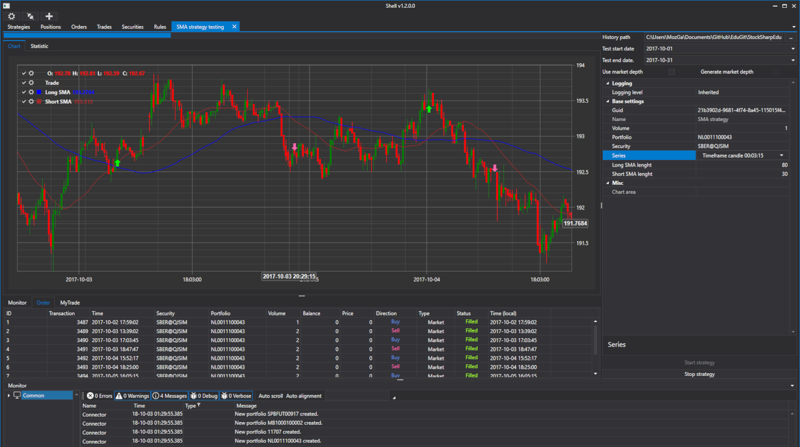
image3979.png In this paper, I will show how to use graphic components included in S#.API, in order to create a fully-featured application of the S#.Shell: You will learn how to make a professional-level program with connection settings, output of securities, prices, and charts (and all this is saved and loaded upon restart). And the complexity of creating such an application is not a few months, but just a few hours (it is no joke! read to the end). This is the main advantage of the graphic framework, which I called by analogy S#.UI (this name is unofficial, I think it up myself). I will not use complex constructs and design patterns that are understandable only to professional programmers. On the contrary, the paper\u0027s purpose is to show that the learning curve on creating your trading applications using S#.API is very short. You will also be interested if you work in a company and make your own unique software (for example, you work in proprietary trading or a brokerage company). In this paper, you will be able to learn the practice of creating such systems (especially if you have just taken up your duties). What You Need Visual Studio 2017 (Community, free version), in which we will program. Free connection to test exchange trading, I will use QUIK. Creating Project We create a new WPF application in Visual Studio. image5545.png After that we need to add the S#.API libraries, and how to do this is described here. I prefer installing with Nuget. Since all S#.API graphic elements are based on DevExpress, and DevExpress libraries are included in S#.API, it would be foolish not to use them. All information about DevExpress graphic elements can be found in Google. Let\u0027s go to the MainWindow.xaml window editor. image4259.png We replace Window with DXWindow, we will need it to use different color schemes. image4329.png Visual Studio will prompt us to add the necessary libraries. We split the window into three parts, there will be a bar with buttons of connection setting and connection at the top. The window with logs will be below. All other panels are in the middle. The easiest way is to split the window in this way using LayoutControl from DevExpress. We will add the elements we need to the resulting three parts. image2275.png Configuring Connection to Connector We add two buttons, one button to configure connection and the second button to connect. To do this, we use the SimpleButton button from DevExpress. The buttons will be located at the top of application. We will place pictures familiar with Terminal and Designer on each button. image9977.png We will see such an image in the upper right corner of the screen form. image1157.png We double-click each button to create button click event handlers. In MainWindow code it is necessary to declare the connector, as well as the file location and name where the connector settings will be stored. image836.png We will open the connector configuration window in the connector settings button click event handler and save it to a file. image1289.png We will check in the constructor whether there is a directory and a file with the connector settings and, if there is one, we will load it into the connector. image3497.png Most S#.API objects have Save and Load methods, with which it is possible to save and load this object from an XML file. We connect the connector in the connection button click event handler method. image6463.png Now we can run the program and test it. Setting Dark Theme I prefer a dark theme. Therefore, we make the program theme dark at once. To do this in the App.xaml file image1012.png We replace Application with charting:ExtendedBaseApplication. Visual Studio will prompt us to add the necessary libraries. And in the file App.xaml.cs delete \": Application\". The code will be the following. image4777.png image9701.png We write ApplicationThemeHelper.ApplicationThemeName = Theme.VS2017DarkName in the MainWindow constructor; Full code at the moment: image8484.png Run to check the dark theme. image1199.png Creating Security Panel We add the XAML folder where we will store all the created controls. We add our first UserControll to the folder, let\u0027s call it SecurityGridControl. image5159.png We add one SecurityPicker element to it. In which the available securities will be displayed. Similar to the main window, we will use LayoutControl from DevExpress. image2385.png We go to the main window constructor and change the central part to the tab view. We place created control with SecurityPicker in one of the tabs. image5375.png Now we have the security panel, we need to set it a data source, in our case it is a connector. It was possible to write SecurityPanel.SecPicker.SecurityProvider = Connector in MainWindow constructor. But we will not place code in the MainWindow that is not related to it. Therefore, I will create the Instance static variable, and assign it the MainWindow value in the MainWindow constructor. image1508.png Now we can call the MainWindow properties anywhere in our program using MainWindow.Instance.XXX code. In the SecurityGridControl constructor, we specify Connector as a data source. image6003.png We run the program to check. image8483.png Adding Logging The operation of the program, connector or robot must be monitored. For this purpose, S#.API has a special LogManager class. This class receives messages from sources and sends them to listeners. In our case, the sources will be Connector, strategies, etc., and listeners will be a file and log panel. In the MainWindow code, we declare the LogManager object and the location where it will be stored. image3414.png In the MainWindow constructor, we create LogManager, set in it Connector as the source, and a file as the listener. image5931.png Similar to the security panel, we create a log panel, add another UserControl to the XAML folder. We call it MonitorControl. We add the Monitor element to it. image4717.png In the MonitorControl constructor, we set Monitor as a listener in LogManager. image8141.png We add the created MonitorControl to the bottom of MainWindow. image5572.png We run the program to check. image6299.png Creating Portfolio Panel Similar to the security panel, we create a log panel, add another UserControl to the XAML folder. We call it PortfolioGridControl. We add the PortfolioGrid element to it. image68.png In PortfolioGridControl constructor, we need to subscribe to new portfolio appearance events and event of new position appearance at Connector. image1333.png Thus, when a new portfolio appears, it will be displayed in the portfolio panel, and when a new position appears in the portfolio panel, the portfolio will update the position. We add the created PortfolioGridControl panel to the central part of MainWindow. image127.png We run the program to check. image3862.png We have a tab with portfolios. Creating Order Panel The order panel in S#.API has the ability to register orders, cancel orders and reregister them. Similar to the security panel, we create an order panel, add another UserControl to the XAML folder. We call it OrderGridControl. We add the OrderGrid element to it. image4502.png OrderGrid has the OrderRegistering event, the OrderReRegistering event, and the OrderCanceling event. Let\u0027s create their handlers. image6128.png In the order registration event handler, we create an OrderWindow window where we need to specify data sources for securities, portfolios, and market data. For all cases, this will be the Connector. After that, we call OrderWindow using ShowModal method, if the OK button was clicked in this window, we register the order via the connector using the RegisterOrder method. image4848.png We do the same in the order reregistration event handler. Only in this case the event receives the Order object - this is the order that needs to be reregistered. Therefore, in OrderWindow, we specify Order = order.ReRegisterClone(newVolume: order.Balance) to fill in the fields of the OrderWindow window. After that, we call OrderWindow using ShowModal method, if the OK button was clicked in this window, we will reregister the order via connector using the ReRegisterClone method. We pass to it old order, which should be cancelled, and the new one, which should be registered. image1314.png In the order canceling event handler, it is enough to call the CancelOrder method and pass to it the order that need to be canceled. image2355.png In order for Orders to be displayed in the OrderGrid, it is necessary in the OrderGridControl constructor to subscribe to new order appearance events and to a registration error event and pass these events to the OrderGrid. image9790.png We add the created OrderGridControl panel to the central part of MainWindow. image4806.png We run the program to check. image7488.png Creating Panel of Own Trades Similar to the security panel, we create a panel of own trades, add another UserControl to the XAML folder. We call it MyTradeGridControl. We add the MyTradeGrid element to it. image3653.png In the MyTradeGridControl constructor, we need to subscribe to the new own trade appearance events and pass it to MyTradeGrid. image7227.png We add the created OrderGridControl panel to the central part of MainWindow. image3738.png We run the program to check. image514.png Creating Order Book Panel Similar to the previous panels, we create an order book panel, add another UserControl to the XAML folder. We call it MarketDepthControl. In MainWindow we have already used LayoutControl, in this control we will also use LayoutControl. We split the panel into two parts horizontally. image1678.png We add SecurityPicker to the left side, we use it when we created the security panel. image7627.png Let\u0027s split the right part into vertical parts. There will be an order book on the top right. image1159.png In MarketDepthControl, we need to set some MaxHeight value, otherwise the application will not start. Below the order book we will place the elements of specifying a portfolio, price, and order volume. image8282.png Here it is worth noting the Label property of LayoutItem, it allows to set the text over the element. And also the SpinEdit element from DevExpress, in which it is convenient to set numerical values. These elements look like this. image4967.png Even below, we will place the buttons to buy, sell. image62.png Full code. image9810.png In the MarketDepthControl constructor, we set the security source for SecurityPicker and the portfolio source for PortfolioComboBox, in our case it will be Connector. image651.png We create a security selection event handler in SecurityPicker. We check in it whether the selected security is not equal to zero. If it is not equal to zero, we save the received security to a local variable, we will need it when updating the order book. After that, we clear and register the received security in Connector to receive an order book using the RegisterMarketDepth method. Using the GetMarketDepth method, we get the current order book on security to update the MarketDepthControl. image3667.png To keep the order book updated in the MarketDepthControl constructor, we will subscribe to the MarketDepthChanged order book change event at the connector. In the handler of this event, we will check which security the received order book belongs to, and if it belongs to the security selected in SecurityPicker, we update MarketDepthControl with it. image4084.png We add the created MarketDepthControl panel to the central part of MainWindow. image7347.png At this stage, we can run the program and check the order book update operation. We create a buy and sell buttons click event handler. In each handler we create an Order, in which we specify the security selected in SecurityPicker, the portfolio selected in PortfolioComboBox, the volume and price from the corresponding SpinEdit. We register the order in Connector using the RegisterOrder method. image7717.png Both handlers differ only by the order direction. Let\u0027s make that the SpinEditPrice value is changed to the selected quote price when selecting a quote in the order book. To do this, we will create a handler for the SelectionChanged event at MarketDepthControl. In which we will update SpinEditPrice value by the price of the selected quote if the selected quote is not equal to zero image90.png We run the program to check. image8902.png Saving Market Data To save portfolios, securities, platforms, we need the CsvEntityRegistry class. We need to pass the entities storage location to it and call the Init method to load them. image7322.png To save candles, trades, etc., we will need StorageRegistry. image809.png We will also need the SnapshotRegistry snapshot storages registry. image4003.png All this we pass to Connector when it is created. image6704.png Here I also specified that Connector will reconnect when the connection is broken, and also specified how many history days should be downloaded. The Connector.LookupAll(); string queries the available data. image6016.png After starting the application, we will see that new folders have appeared in the Date folder. image7577.png And when reconnecting the security and portfolio panels will already be filled. Creating Strategy Panel I will create the strategy panel just like all previous panels. We add another UserControl to the XAML folder. We call it StrategyControl. We split the screen form into two parts using the LayoutControl. There will be a tab with a candle chart on the left side. image344.png As well as a tab with strategy statistics, image4907.png Here I use StatisticParameterGrid to display strategy statistics and EquityCurveChart to display profit and loss chart. In StatisticParameterGrid, we need to set some MaxHeight value, otherwise the application will not start. The strategy properties in PropertyGridEx will be configured on the right side. image721.png As well as strategy start and stop buttons. image1047.png Full code. image2510.png In the StrategyControl constructor, we set Connector as a data source for PropertyGridEx, we carried out similar actions in almost every control. image8773.png We need to somehow pass the strategy to our control. To do this, in StrategyControl I will create a BindStraregy method that will receive a strategy, save a link to it in the local variable, and also set a strategy in PropertyGridEx and StatisticParameterGrid. Using the SetChart method, we pass the Chart candle chart to the strategy, after that, the Chart can be obtained in the strategy using the GetChart method. We also set the Connector for the strategy. image8230.png When working with the profit and loss chart, it is necessary to take into account that the strategy may start and stop several times, so every time the strategy starts, the chart should be cleared. To do this, let\u0027s create the ResetEquityCurveChart method, in which we will first clear EquityCurveChart. After that we need to create graphic elements for EquityCurveChart, for them we can set a name, color and line type. image6360.png Then, we subscribe to the PnL change event of the strategy and in this event handler we draw a new value on the EquityCurveChart profit loss chart. image3106.png Full method code. image2024.png We will call this method in the Start button click event handler. And also we will reset the strategy state and run it. image3375.png We will stop the strategy in the Stop button click event handler. image3399.png We add the created StrategyControl panel to the central part of MainWindow. image8678.png Creating Strategy For example, let\u0027s consider creating a simple strategy with candles. Which will buy if the candle is growing (green), and sell if the candle is falling (red). Let\u0027s create another folder in the project and store all our strategies in it. We create a new class in this folder and call it SimpleStrategy. All S# strategies must be inherited from the base class Strategy. image1577.png Since our strategy uses candles, we will create a public property CandleSeries, and set its default value in our strategy constructor. image442.png Here I specified that candles in CandleSeries will be TimeFrameCandle with time span of 15 seconds (TimeSpan.FromSeconds(15)). We can specify the candle creating mode for CandleSeries - BuildCandlesMode. I specified that candles will be built (MarketDataBuildModes.Build), by default they will be built from ticks, but we can specify other data types as well. Since we made the CandleSeries a public property, the CandleSeries can be additionally configured from the PropertyGridEx described in the previous paragraph. All strategies have methods that can be overridden, we will need to override the OnStarted method. Which is called before the launch of the strategy and allows to preset its starting state. image6026.png Here we set the security for CandleSeries, which is specified in the PropertyGridEx. After that, we create a rule for processing the completed candle. See the documentation for details on working with rules. In the rule we specify the method that will process each completed candle, in our case it is the ProcessCandle method, it will be described later. After everything is set, we subscribe to the appearance of candles on the CandleSeries in connector using the SubscribeCandles method. In our case, the ProcessCandle method contains the main strategy logic. image3324.png First of all, we need to determine whether the candle is real-time or historical, if the candle is historical, we ignore it. Not all strategies require this, for example, for strategies based on order books, this is not required, since order books are always real-time. There is no general way to determine whether a candle is real-time or historical, and in each strategy this problem will have to be solved independently depending on the strategy requirements. In this case, I will simply compare the candle closing time with the connector time, and if it does not exceed a certain lag, then I consider the candle real-time. image2732.png Next, we consider what candle it is and what the strategy current position. If the candle is growing, then at a position equal to 0, we will open a position with a market order for the volume set by us in PropertyGridEx. If the candle is growing and the position is less than 0, we reverse the position. image4474.png We do opposite actions for a falling candle. image5127.png At the moment, our strategy is ready to work. It should be passed to SimpleStrategyControl, which we created in the previous paragraph using the BindStraregy method. We do this in the MainWindow constructor immediately after the MainWindow components are initialized. image374.png We run the program to check. image9399.png image5010.png The strategy works, trades are made, but there are no candles and trades on the chart yet. Adding Candles and Trades to Chart from Strategy In the paragraph about the strategy panel, we passed the Chart candle chart to the strategy using the SetChart method. In the OnStarted strategy method, we check whether the strategy has a chart set, and if it is set, then we initialize the chart, as well as subscribe to the events of new own trade appearance and candle change. image5547.png InitChart chart initialization method. image977.png Here we save the link to Chart in a local variable. We clear the chart. We also create chart elements for candles and trades and pass them to the chart. The chart.GuiSync(()=\u003e); construct is necessary in order to initialize the chart in the main thread. CandleSeriesProcessing is a method for drawing candles on a chart. image9921.png Here we get a candle from the CandleSeriesProcessing event of the connector, create ChartDrawData to display it on the chart. We specify the time data.Group(candle.OpenTime), specify that the candle should be added to the candle element of the chart .Add(_chartCandleElement, candle);. And we specify that the chart should draw new data. We perform similar actions for trades. image4611.png We run the program to check. image944.png Short conclusion It is not necessary to spend a lot of time to create a complex and professional-looking application. In a few hours we created the fully-featured application with the ability to configure, display and trade directly. Do not be afraid to try and create your own programs. I hope this paper will help you get used to this business.
Hello dear friends! Today, we are completing the delivery of products within 3rd crowdfunding round and present connector to MT5. Now the StockSharp platform allows trading by robots both through the most popular forex terminal MetaTrader 4 and through the 5th version of this product. Participation in the project is still possible by the same prices until November 12! We invite everyone who has not participated in the project to get the lifetime license for only 500$. Since November 12 1000$! Project participants, we invite you to get the connector here!
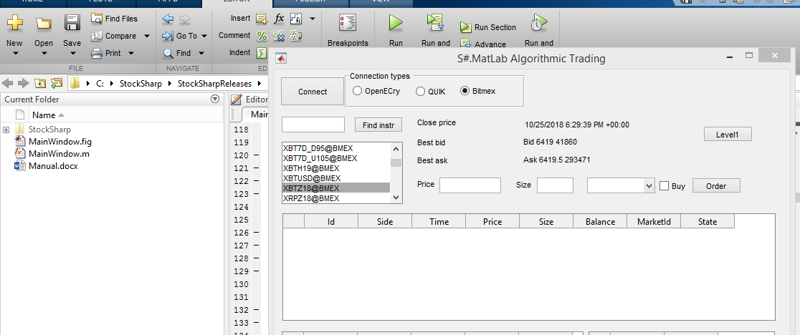
Hello, everybody! Today we announce another not very big, but important update in one of our products: S#.Matlab! We have added support for cryptocurrencies! Now anyone can easily launch strategies written in MatLab on the cryptocurrency market! Recall that the concept is very simple: We write strategy in MatLab environment, perform complex calculations, use many non-trivial functions and approaches. We connect S#.Matlab through which we send commands to execute the strategy in the real market and get market information in our own script. Profit! And so that we apply special promo-offer which allows you only until November 12 to get any our connector (S#.Matlab and Crypto too) with a special discount in 20% **:::center [:\u003e\u003e I want it
Hello everyone, last week we have announced the news about starting the Dividends calculation! Today we are pleased to inform you that the total amount received is 1 800$!. In accordance with the conditions of our campaign 50% of this amount is subject to distribution, which is 900$. Our investors have earned ~11.5% of the invested funds for the last quarter! Dear investors, thank you again for supporting our project, in the near future we will contact you to clarify details of the dividends transfer! We invite everyone else to familiarize yourself with the conditions of our campaign and not only get a connector for MT4/5, but also become an investor of our project! **:::center [:\u003e\u003eAbout our campaign!
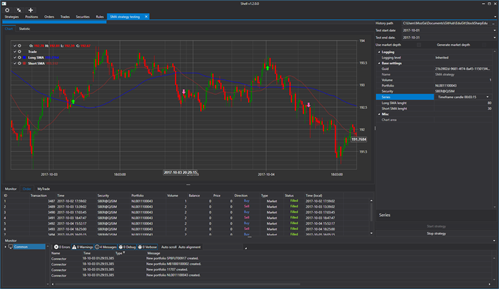
Friends, today we are announcing the new version of our framework S#.Shell. We have updated and improved it, brought into compliance with all the features of our platform. In addition, we would like to separately note a completely new super feature of the updated S#.Shell. We have added **the support for schemas written in S#.Designer**. Run strategies written in S#.Designer in simple and fast S#.Shell on your computer or remote server! We also kept improving the existing features of our product: Complete source code. Perfect for creating customized algo strategies for someone or for yourself. Support for all StockSharp platform connections: Quik, SmartCom, Plaza II CGate, FIX/FAST, Crypto Exchange (+30 at the moment), etc. Flexible user interface Strategy testing (statistics, equity, reports). Save and load strategy settings. Launch strategies in parallel. Detailed information on strategy performance (orders, transactions, position, revenue, logs, etc.). Everything is simple and easy to understand. Launch strategies on schedule. You can get S#.Shell along with our training courses or simply ** bought for 490$! **
Hello all! Last week we have announced the latest version of S#.Shell! We would like to remind that the new S#.Shell supports schemas, created into another our popular program S#.Designer, and execute strategies into simple and fast S#.Shell is very easy!!! Also, S#.Shell, as our other products, support all connectors of StockSharp platform: stocks and futures, options and yes cryptocurrencies!!! Today, the promo for everybody can experience the possibilities of an updated framework in practice, we introduce special conditions for the upgrades: Only until end of this week, you can get S#.Shell with all features and full source code. with a discount in 20%. Get it now for 390$ only! if you are participant of our crowdfunding campaigns, then your personal discount is 30%. Only 340$! and if you are the bought our training, then the conditions are very tempting, the discount is 40%. If your are from this group then write us at lesson@stocksharp.com for personal payment link!
Hello everybody! In July we have started our 3rd crowdfunding round for developing connector to MetaTrader 4/5 terminal. The connector for MT4 platform is already available. But today this is not important! As we announced in the conditions of the new program, the campaign participants at a certain level of contribution also become co-investors of our project! (We wrote more about this in the news here, here and here.) Today\u0027s news is just about that. We begin the calculation and accrual of dividends! We will announce the exact amount of the amount to be distributed next week! If you are not with us, then the entry is still possible! The minimum contribution is 1 000$ of which 500$ is an investment fee. The maximum fee is not limited! [laugh][lol] **:::center [:\u003e\u003eBecome an investor