
 Русский
 中文
中文
 Español
 Deutsch
 Português
 日本語
日本語
NuGet is the package manager for the Microsoft development platform, including .NET. The NuGet client tools (integrated into Visual Studio) provide the ability to produce and consume packages, including S#.API.
All S#.API packages are compiled for .NET 5. This is a cross-platform version (connectors, backtesting and market-data storage are available on any OS), but the graphical components are supported on Windows only.
Public Nuget server
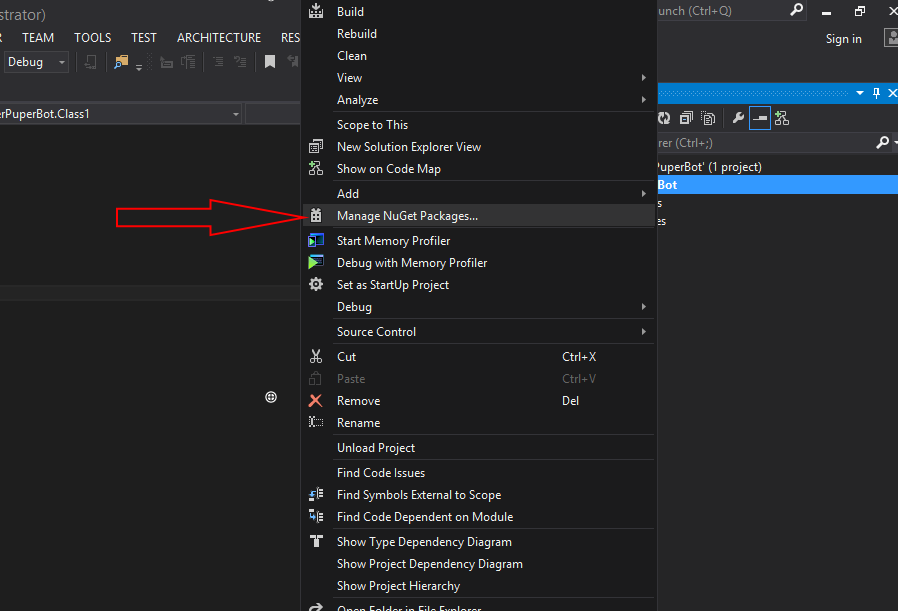
- Select a project or solution in the Solution Explorer window, right-click and select Manage NuGet Packages...:
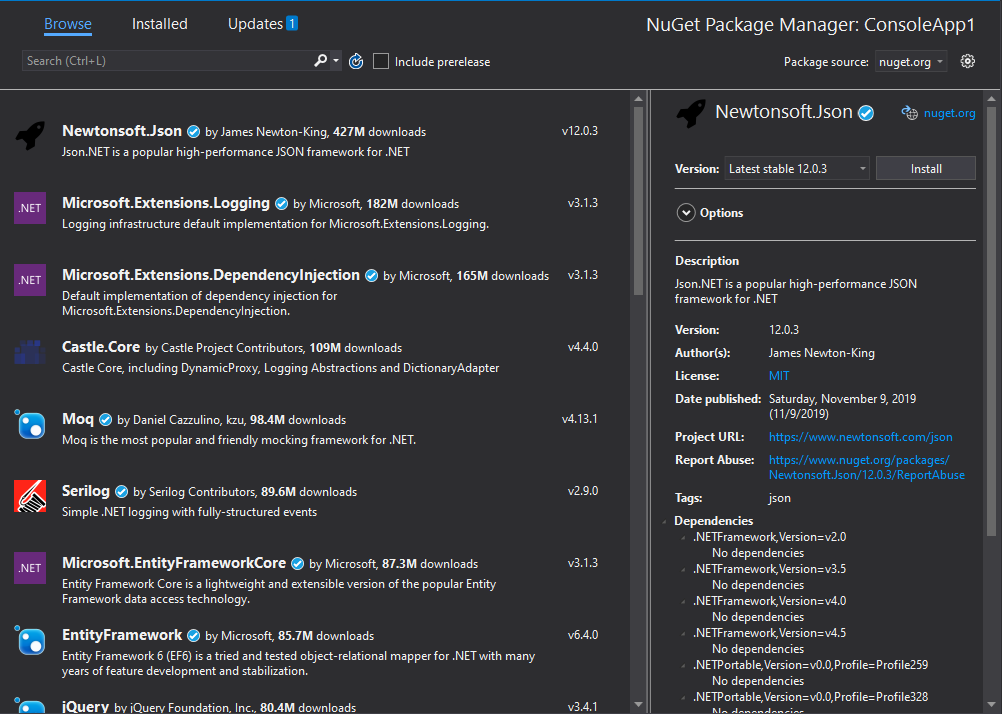
- The NuGet window will appear as shown below:
- In the Search box in the upper right corner, type StockSharp (case insensitive). When the S#.API package appears in the search results as shown in the picture, click Install:
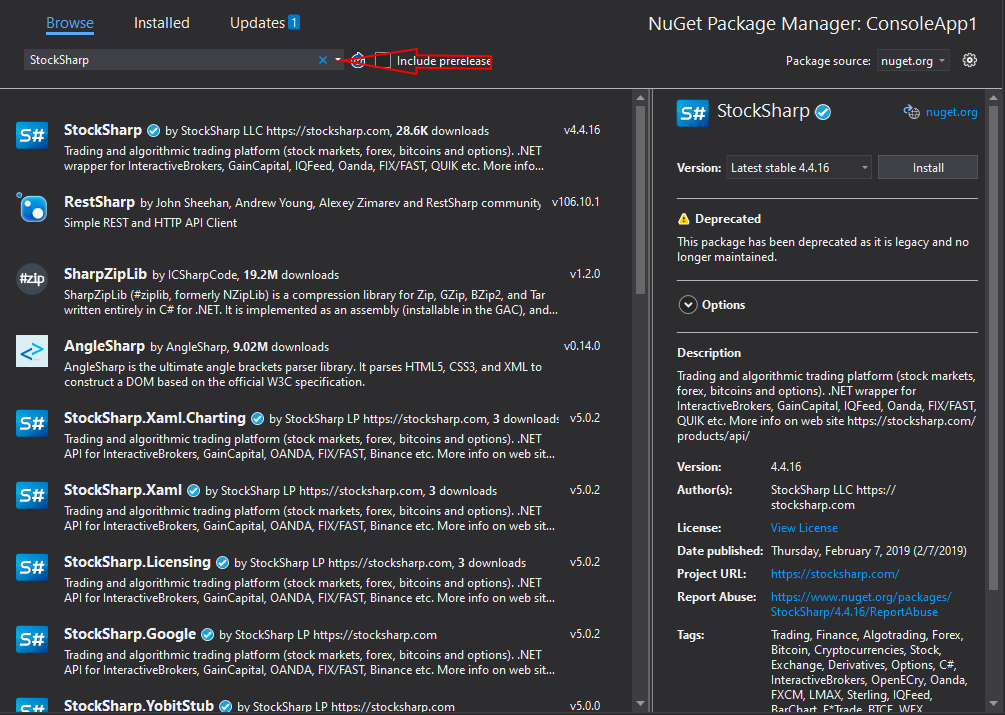
- The S#.API platform is divided into many NuGet packages, each of which defines its own capabilities. For example, StockSharp.Algo provides the basic algorithms and a backtester, StockSharp.InteractiveBrokers provides the broker connector, and StockSharp.Xaml.Charting provides candlestick and indicator charts.
When you choose one of the specific packages, its dependencies are downloaded automatically. There is no need to determine which additional .NET assemblies are required for the package being installed.
- The StockSharp.InteractiveBrokers package is used here as an example. Click the Install button:
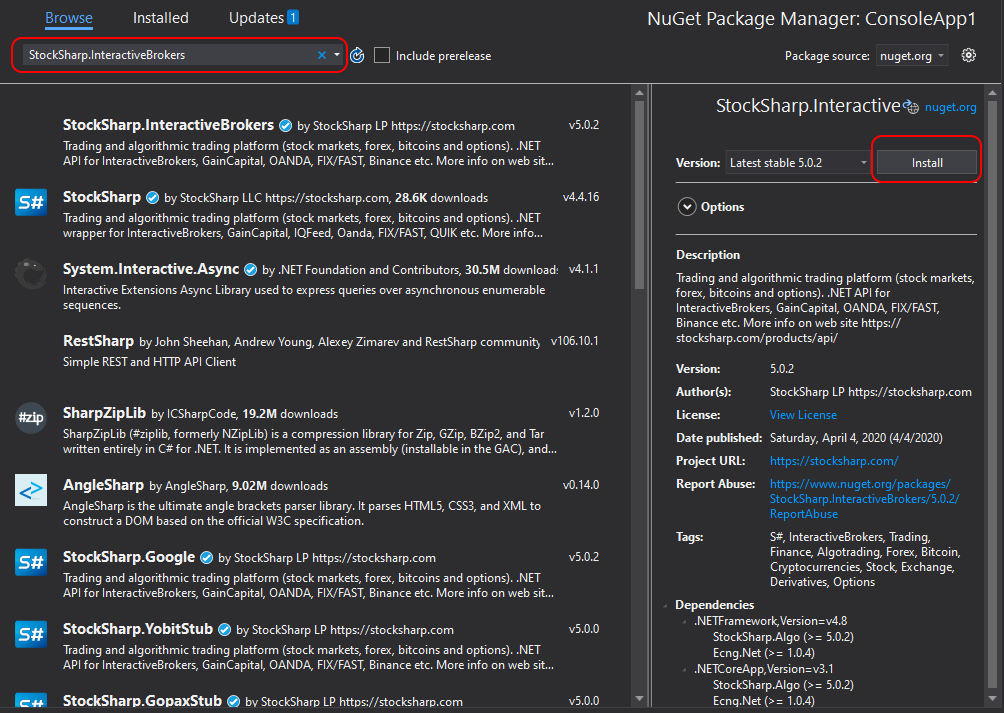
After the installation is complete, the required S#.API files are placed in the packages folder. These files are also added as project references.
Samples are located on GitHub.
Private Nuget server
Some of the components are located on a Private NuGet server. This server is available to all registered users, and the availability of specific packages depends on the connectors purchased. For example, all crypto connectors are located only on the Private NuGet server, while only stubs are publicly available on nuget.org.
To connect to the Private server, you need to:
Register on the website.
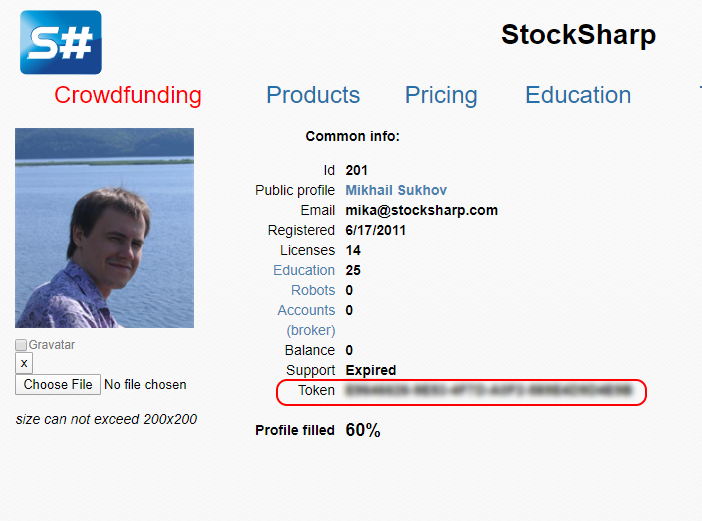
Go to your profile and copy the Token:
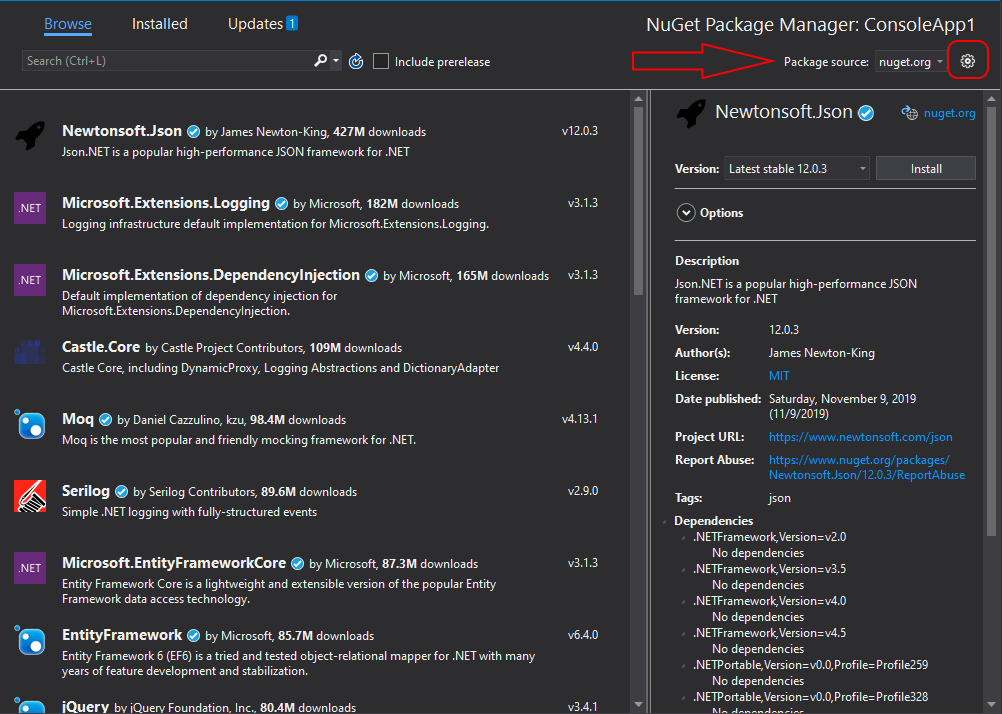
- Follow steps 1 and 2 from the Public NuGet server section and open the settings window for the available feeds:
- In the window that appears, add a new feed, specifying the address as https://nuget.stocksharp.com/{token}/v3/index.json For example, https://nuget.stocksharp.com/AAHBWDNOINXWNJNWD/v3/index.json
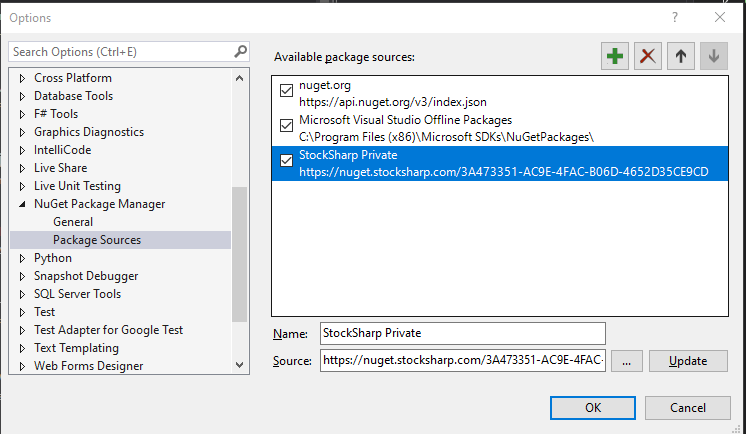
- Press the OK button and select the feed you created. If you have access to certain private components, a list of available NuGet packages will appear:
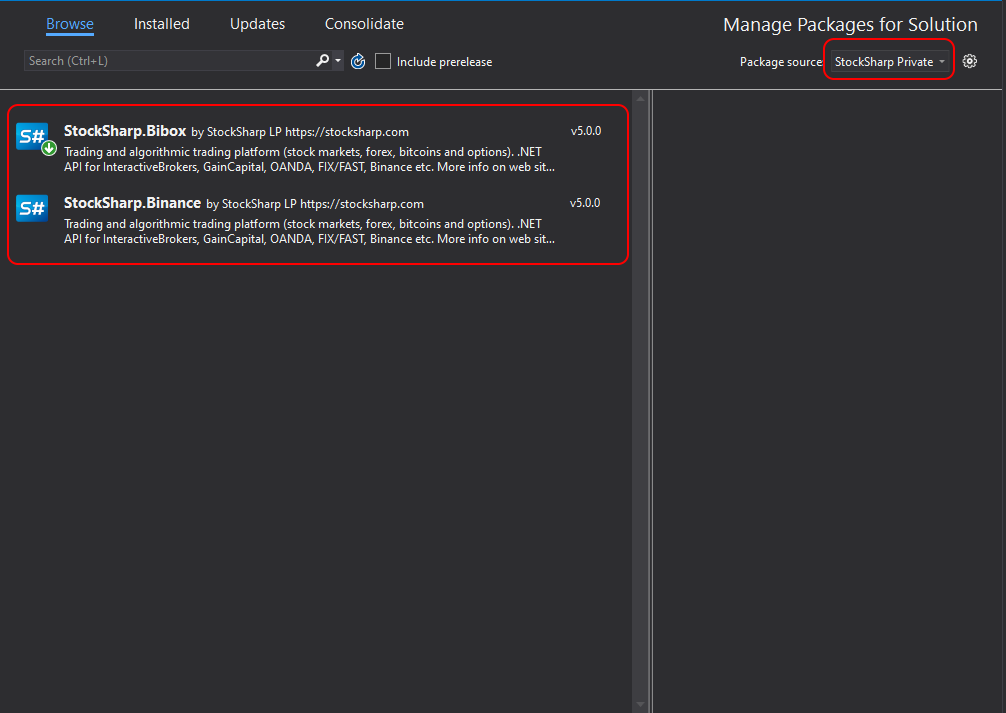
Select the ones you need and press the Install button.
When you download a package from the Private server, the packages from the public part are downloaded automatically. For example, StockSharp.Algo and StockSharp.Logging, which are common to most components. There is no need to switch to the public server and download the additional packages that a package on the private server depends on.
Get new updates
The NuGet package manager allows you to receive new version updates when they are released. To do this, open Manage NuGet Packages... in the same way (steps 1 and 2 from the Public Nuget server section) and check for updates on the Updates tab. If any are available, Visual Studio will show which packages have a new version; select the packages you need and click the Update button.
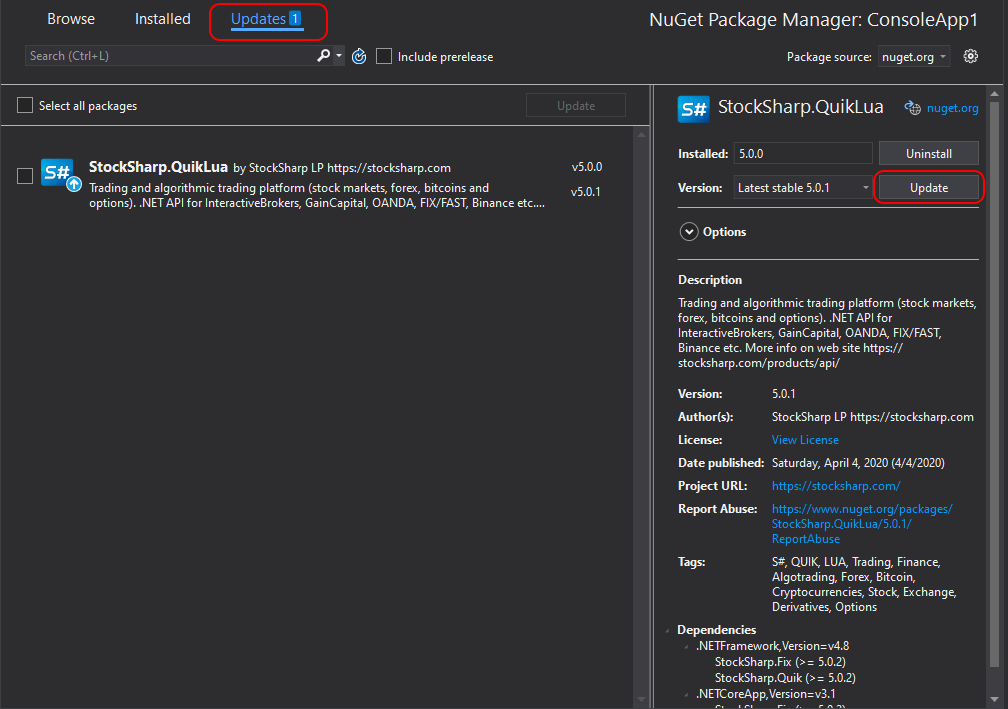
To check for updates on the Public and Private servers, you must switch the feed in the upper right corner, as shown in step 5 of the Private Nuget server section. VS 2019 cannot track multiple feeds at the same time.
S#.Installer
S#.Installer is a dedicated application for easily downloading and installing all products. See the manual.